Turn any LLM into a
ProSBC expert.
The TelcoBridges MCP exposes ProSBC’s full configuration surface to any MCP-compatible LLM. Ask questions, make config changes, push routes, manage licenses, all in natural language, all under your approval.
Free to use · No subscription · No credit card · Bring whatever LLM you already pay for
Watch the walkthrough
From zero to configured in 6 minutes
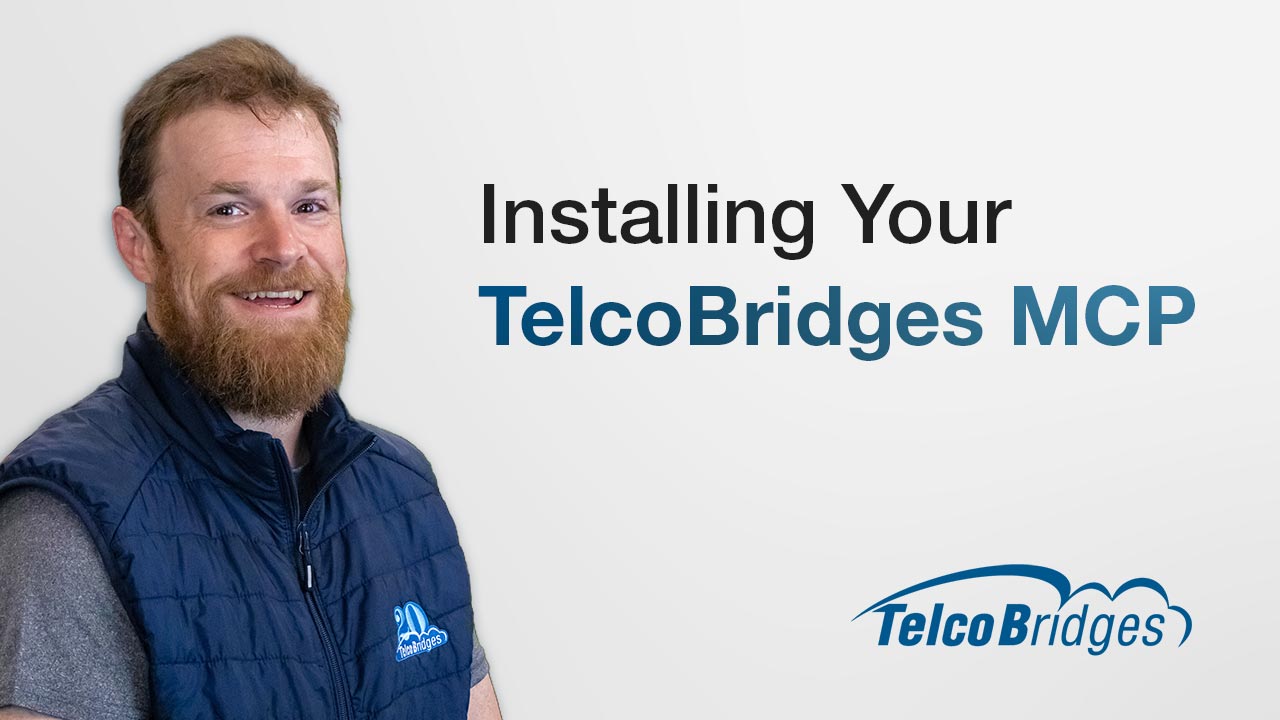
Joshua from our product team walks through the full installation and shows the MCP reading live ProSBC routes, answering a SIP-I product question, and configuring a new NAP in a lab environment.
Get started
Add the MCP to your AI client
The TelcoBridges MCP is a remote server. No local install, no dependencies, no account required. Just point your AI client to our URL.
Set up your AI client (Optional)
Already using an MCP-compatible client? Skip to step 2. Otherwise, pick your client and follow the setup guide below.
Add the TelcoBridges MCP server
Copy this URL into your client’s MCP configuration. This is the only step that connects your LLM to ProSBC.
https://vi.telcobridges.com/mcpAsk your first question
You’re all set. Start a conversation and ask your LLM anything about ProSBC (configuration, routing, licensing or troubleshooting). The MCP handles the rest.
What you can do with the MCP
Manage ProSBC workflows in natural language
The MCP exposes ProSBC’s configuration surface to any MCP-compatible LLM. Ask questions, make changes, push routes, upload licenses, all with your explicit approval.

Make config changes
Add a NAP, push a routing rule, update a dial plan. Whatever you would open the ProSBC console to do, ask your LLM instead. Every write action stays under your approval and is audit-logged.

Interactive knowledge base
The full ProSBC documentation, queryable in natural language. Including routing scripts, regex patterns, and multi-step configuration recipes that usually require senior engineering knowledge.

License management
Check expiry dates across your entire fleet. Upload renewed licenses without logging into the dashboard. Get the heads-up before something stops working.

Works in any language
The MCP exposes English documentation. Your LLM translates. Ask in Portuguese, French, Spanish, German, Mandarin, get answers in the language you asked.
Compatible with leading AI clients
Use the LLM your team already trusts
Use Claude, ChatGPT, Cursor, OpenCode, or any MCP-compatible client. The TelcoBridges MCP is free, open, and built to fit your existing AI workflow.






Free MCP. MaaS when you need live data.
Use our Free MCP for ProSBC knowledge.
Upgrade when you need real-time voice network insight.
The MCP helps your AI understand and work with ProSBC. MaaS adds the live operational layer: your calls, trunks, traffic patterns, fraud signals, and outages.
START HERE
MCP Server
you already pay for.
The MCP gives it the ProSBC context it needs to become useful across everyday SBC questions, configuration tasks, and operational workflows.
- Make config changes in natural language
- Full ProSBC documentation, queryable
- License management (check + upload)
- Any language, any MCP client
- No account required to start
- Every write action under your approval
UPGRADE WHEN READY
MaaS (the full platform)
about your calls.
MaaS gives your LLM access to the live data behind your voice network: calls, trunks, traffic patterns, fraud signals, and outages. Use it to understand what is happening across your SBC fleet and take approved operational actions from the same workflow.
- Cross-SBC call view across your fleet
- Anomaly Z-scores and predictive fraud
- Element Management System (EMS)
- AI assistant that knows your actual data
- BYO LLM or use ours
- Pricing on request
AI Client setup guides
Step-by-step for your client
Pick your AI client for the installation instructions.
Claude Code
Add the MCP server with one command:
claude mcp add --transport http telcobridges https://vi.telcobridges.com/mcpVerify it was added:
claude mcp listStart a new conversation. The TelcoBridges MCP tools are now available.
Claude Desktop
Open Claude Desktop and navigate to Settings → Connectors → Add custom connector.
Paste the MCP server URL:
https://vi.telcobridges.com/mcpClick Add and start a new conversation. The TelcoBridges MCP tools are now available.
Alternative: You can also add the server via Settings → Developer → Edit Config using the "url" key in claude_desktop_config.json.
OpenAI Codex
Add the following to your Codex config file at ~/.codex/config.toml:
[mcp_servers.telcobridges]

url = "https://vi.telcobridges.com/mcp"
Restart Codex. The TelcoBridges MCP tools are available in your next session.
OpenCode
If you do not have OpenCode installed yet:
curl -fsSL https://opencode.ai/install | bashCreate the config directory and write the MCP config:
mkdir -p ~/.config/opencode/echo '{"$schema":"https://opencode.ai/config.json","mcp":{"maas":{"type":"remote","url":"https://vi.telcobridges.com/mcp","enabled":true}}}' | jq . | tee ~/.config/opencode/opencode.jsoncReload your shell and run your first prompt:
source ~/.bashrcopencode --prompt "Can you use @maas and list all the routes on my ProSBCs"Other MCP-Compatible Clients
Any client that supports the Model Context Protocol can connect to the TelcoBridges MCP. Add this server URL to your client’s MCP configuration:
https://vi.telcobridges.com/mcpPopular clients with MCP support:
- Cursor: AI code editor with MCP support in settings Website
- Continue: Open-source AI coding assistant for VS Code and JetBrains Website
- Cline: Autonomous coding agent for VS Code Website
Check your client’s documentation for where to add MCP server URLs.
Add the MCP server with one command:
claude mcp add --transport http telcobridges https://vi.telcobridges.com/mcpVerify it was added:
claude mcp listStart a new conversation. The TelcoBridges MCP tools are now available.
Open Settings → Connectors → Add custom connector and paste:
https://vi.telcobridges.com/mcpClick Add and start a new conversation.
Add to ~/.codex/config.toml:
[mcp_servers.telcobridges]

url = "https://vi.telcobridges.com/mcp"
Restart Codex. The MCP tools are available in your next session.
Install OpenCode if needed:
curl -fsSL https://opencode.ai/install | bashCreate config and write MCP config:
mkdir -p ~/.config/opencode/echo '{"$schema":"https://opencode.ai/config.json","mcp":{"maas":{"type":"remote","url":"https://vi.telcobridges.com/mcp","enabled":true}}}' | jq . | tee ~/.config/opencode/opencode.jsoncReload shell and run:
source ~/.bashrcopencode --prompt "Can you use @maas and list all the routes on my ProSBCs"Interested in MaaS?
Ready to get the most out of your voice network with live call data, traffic patterns, fraud signals, and outage alerts, all accessible through the AI tools your team already uses? Fill out the form below and a member of our team will reach out.
By submitting this form, your information will be processed in accordance with our Privacy Policy.